TON wallet PnL: how to calculate profit and loss from swaps for any address

The PnL page turns a wallet’s swap history into numbers: how much TON and stablecoin came in, how much went out, and what that means for every jetton the wallet traded. You need only an address. This guide explains each block and the limits of the numbers. If you are new here, see the overview.
Step 1. Open PnL for an address
Go to the PNL section, paste an address and press Open PnL analysis. The form checks the format and tells you if the address is empty or invalid.
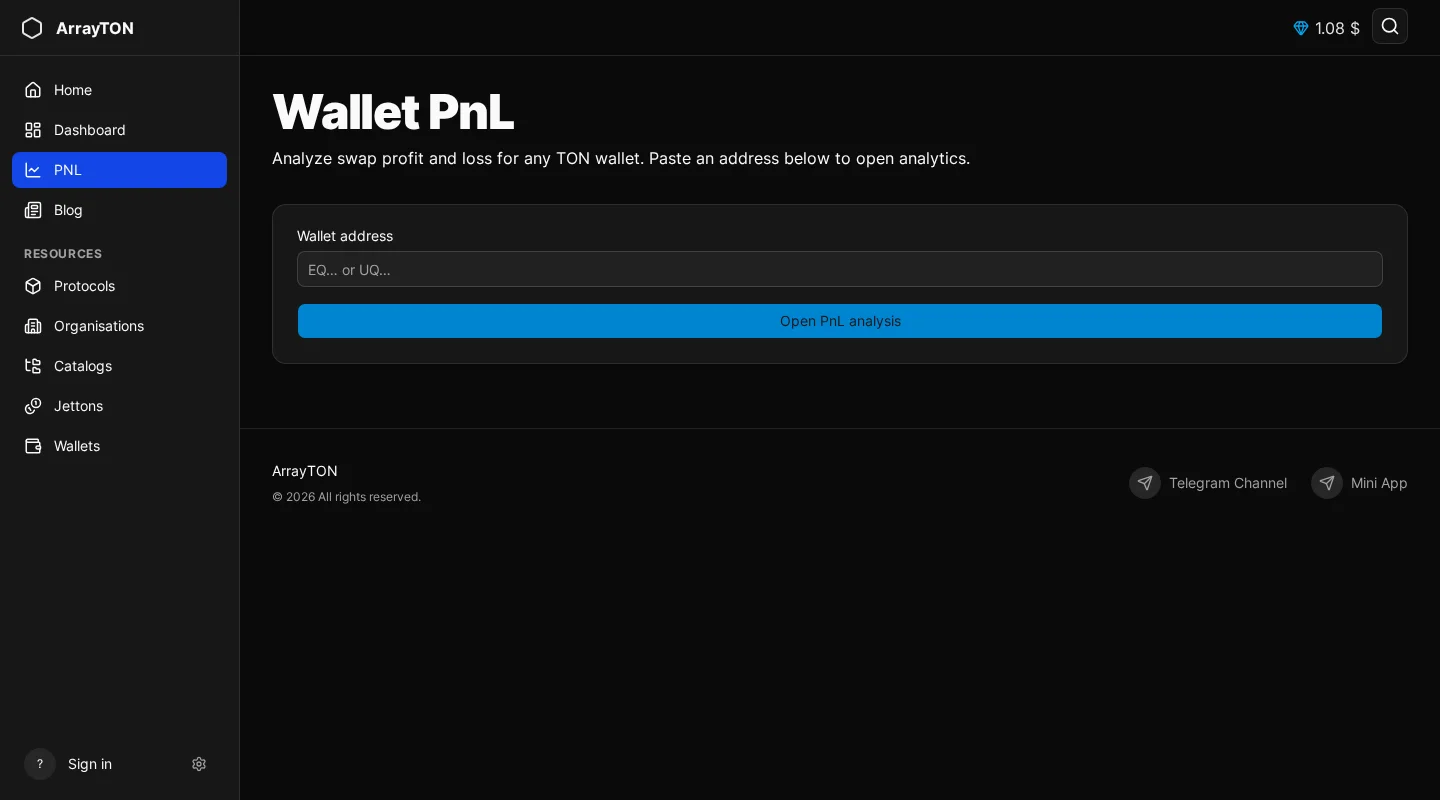
You can also reach the same analysis from the PnL tab of a wallet page. If you are signed in, a My wallet shortcut fills in your own address.
Step 2. Check that the data is loaded
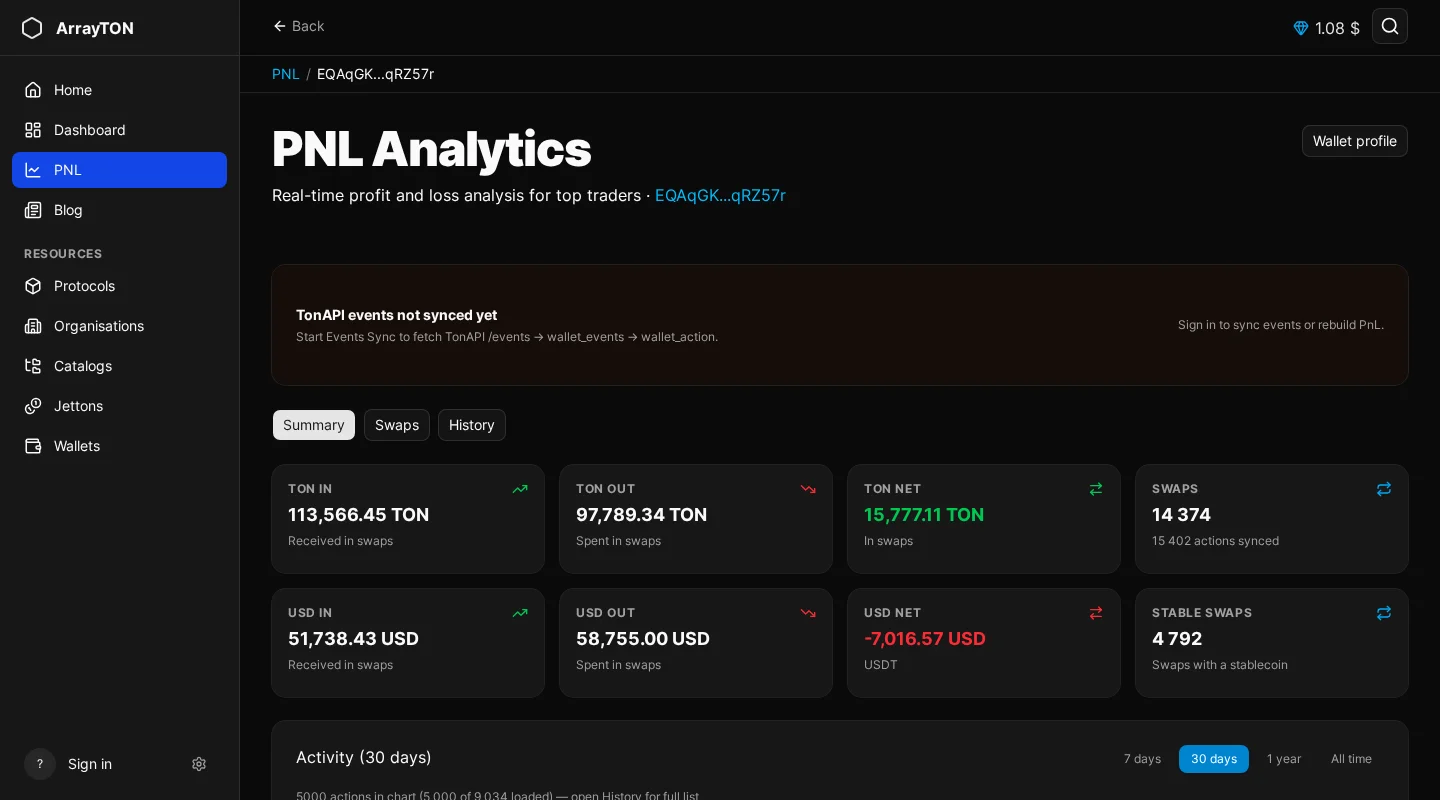
At the top of the report a banner shows the state of the data:
- TonAPI events not synced yet or wallet not in database yet: the portal has not loaded this address. A signed-in user can start Import & sync events; without signing in the page says so.
- Events sync in progress: pages are being imported and the page refreshes by itself.
- Partial event history: only recent TonAPI pages were imported. Resync all events loads the full history.
- Last computed: when PnL was last calculated and how many pages, events and actions were used.
Starting a sync or Rebuild PnL requires signing in. Until history is complete, treat every total as “for the loaded events”.
Step 3. Read the Summary tab
The report has three tabs: Summary, Swaps and History. The Summary cards cover swaps only:
| Card | Meaning |
|---|---|
| TON In / Out / Net | TON received and spent in swaps, and the difference |
| USD In / Out / Net | The same for stablecoins; empty if the wallet never swapped a stablecoin |
| Swaps / Stable swaps | Number of swaps, with the number of actions synced, and how many swaps involved a stablecoin |
Below the cards is the activity chart for 7 days, 30 days, 1 year or all time. Click a bar to open History for that day.
Step 4. Break it down by jetton
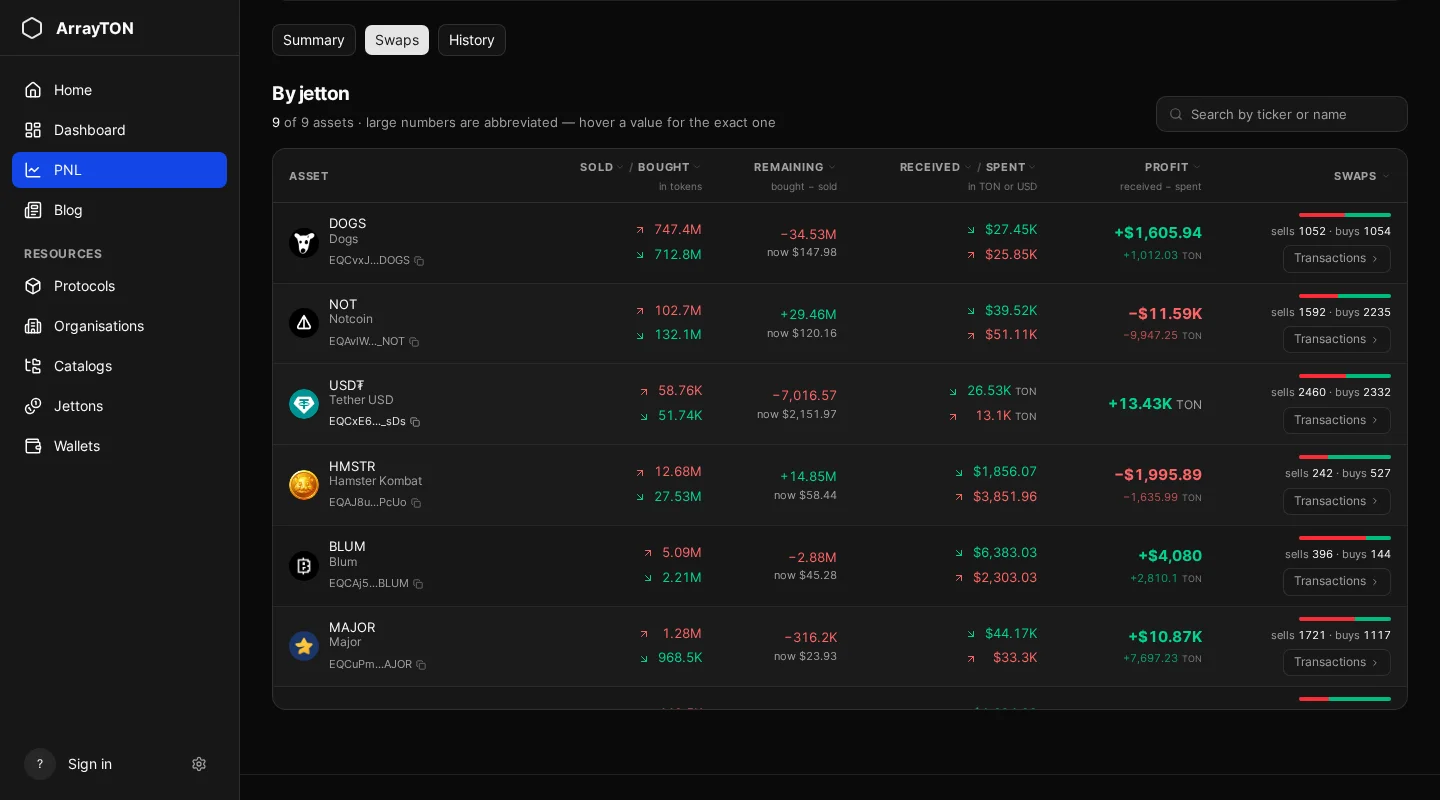
The Swaps tab holds the By jetton table, the most useful part. For every asset:
| Column | Meaning |
|---|---|
| Sold / Bought | Token amounts |
| Remaining | Bought minus sold: what the history says is still held |
| Received / Spent | Amounts in TON or USD |
| Profit | Received minus spent |
| Swaps | Number of sells and buys, with a bar and a Transactions button |
Search by ticker or name; hover a number for the exact value. Transactions on a row shows every action for that jetton.
How to read it: a positive Profit with a large positive Remaining means the wallet may still hold a bet, and Profit is a cash difference, not a valuation of the tokens that remain. A negative Profit with Remaining near zero is a closed losing position. A negative Remaining means the wallet sold more than it bought in the loaded swaps; tokens may have arrived by transfer.
Step 5. Verify in History
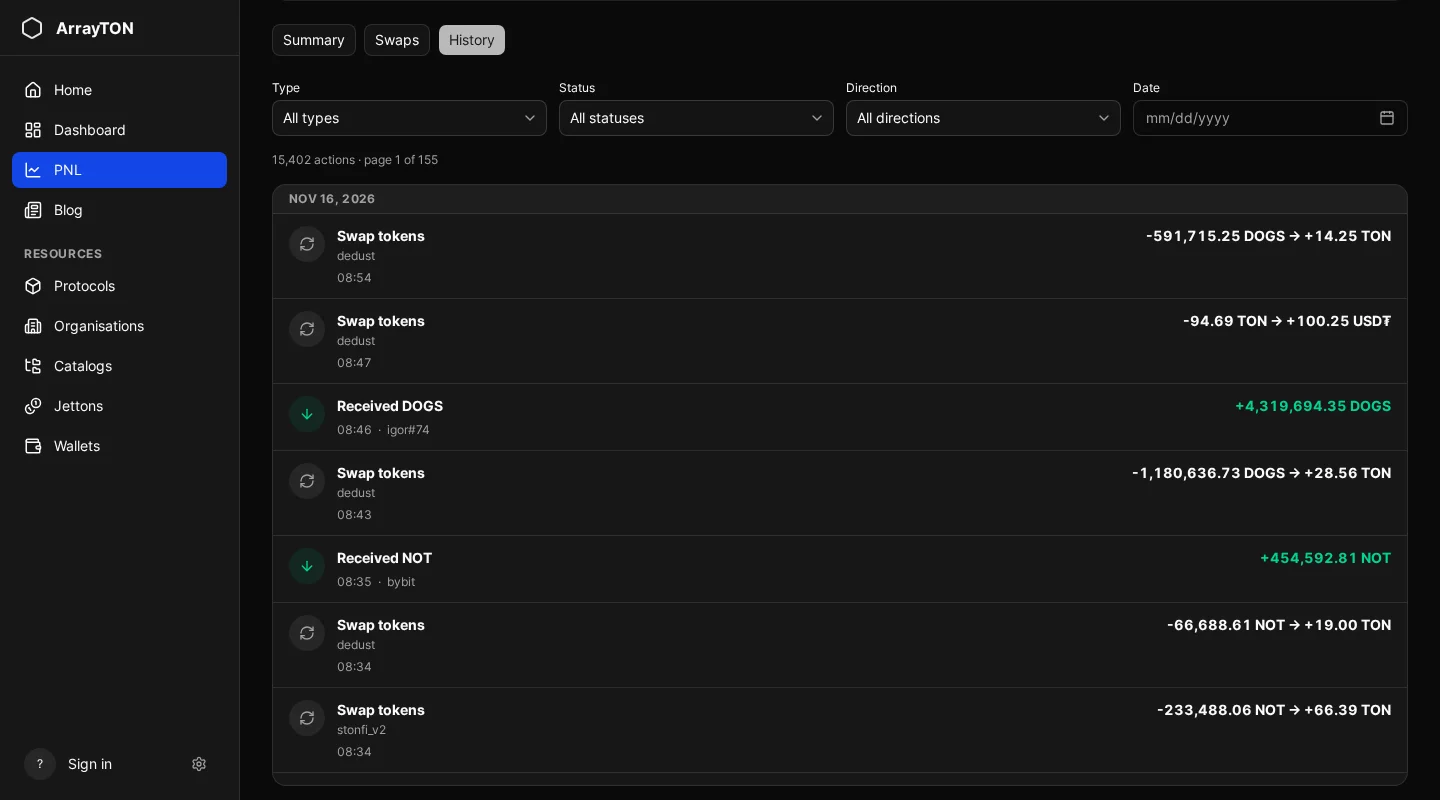
The History tab lists the wallet’s actions in order (swaps, transfers, stake, contract calls) with amounts and the DEX used. It has pagination and a Download CSV button, handy when you want to check a number or keep a record.
Limits to remember
- Numbers depend on loaded history; check the banner first.
- Transfers are not swaps: tokens received by transfer or airdrop and then sold show as sales without a matching purchase.
- Prices at the time of each trade are not a verdict on skill: lucky timing looks the same as good analysis.
- This is analysis, not investment advice.
Frequently asked questions
Can I see someone else’s PnL? Yes, for any public address.
Why is the stablecoin block empty? The wallet never swapped a stablecoin.
How long does a first sync take? It depends on the history length; the page updates by itself.
Next step
Learn what the portal knows about the projects behind the jettons: catalogs, protocols and organisations.